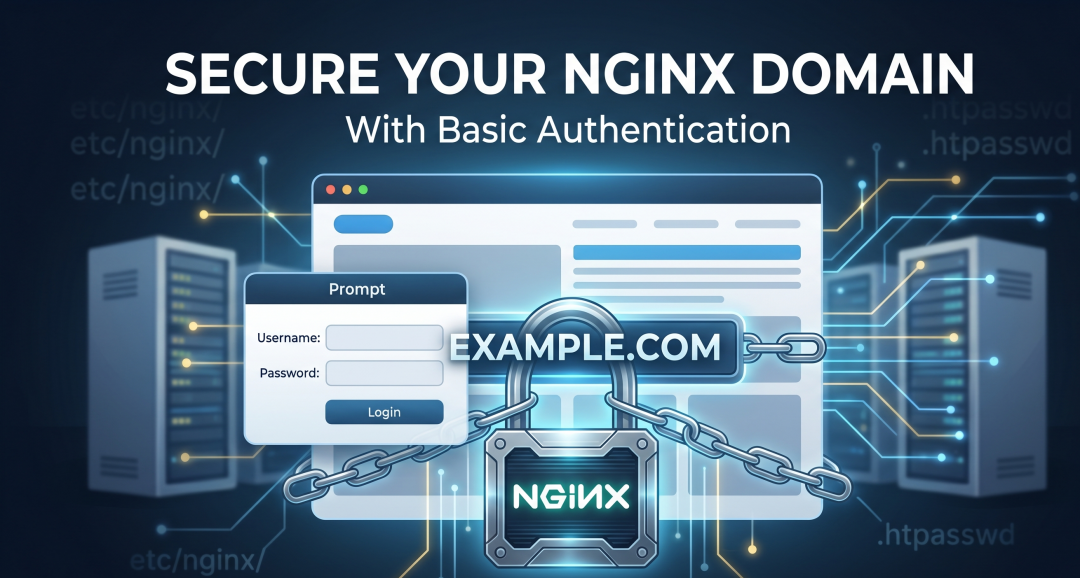
Whether you are protecting a staging site, a private dashboard, or a internal tool, NGINX Basic Authentication is one of the simplest and most effective ways to add a layer of security.
In this guide, we will walk through the setup process while focusing on a critical security rule: Never store your password files in the public web directory.
Why Use Basic Authentication?
Basic Auth acts as a “gatekeeper” at the server level. Before NGINX serves a single byte of your website, the browser prompts the user for a username and password. This happens before any application code (like PHP or Python) even runs, saving server resources and keeping unauthorized eyes off your data.
Step 1: Install the Required Utilities
To generate encrypted passwords, you need the htpasswd tool. This is typically found in the apache2-utils package.
On Ubuntu/Debian:
sudo apt update
sudo apt install apache2-utils
Step 2: Create a Secure Password File
Many beginners make the mistake of putting the .htpasswd file inside their website’s root folder (e.g., /var/www/html/). This is a security risk. If misconfigured, a visitor could download that file and crack your passwords.
Instead, store it in /etc/nginx/. If you have multiple domains, name the file after the domain for better organization.
# Replace 'example.com' with your domain and 'admin_user' with your name
sudo htpasswd -c /etc/nginx/.htpasswd.example.com admin_user
The -c flag creates the file. Only use it for the first user you add to that specific file.
Step 3: Configure the NGINX Server Block
Now, tell NGINX which domain needs protection. Open your site’s configuration file (usually in /etc/nginx/sites-available/).
Add the auth_basic directives inside the server block. By placing them inside location /, you protect the entire domain.
server {
    listen 80;
    server_name example.com;

    root /var/www/example.com;

    location / {
        # The message displayed in the login prompt
        auth_basic "Restricted Access";

        # The path to the secure file we created in Step 2
        auth_basic_user_file /etc/nginx/.htpasswd.example.com;

        try_files $uri $uri/ =404;
    }
}
Step 4: Test and Apply Changes
Before reloading, always verify that your configuration syntax is correct to avoid taking your site offline.
1. Check Syntax:
sudo nginx -t2. Reload NGINX
sudo systemctl reload nginxCritical Security Checklist
- Permissions: Ensure the password file is owned by
rootbut readable by NGINX.Bash
sudo chown www-data:www-data /etc/nginx/.htpasswd.example.com sudo chmod 640 /etc/nginx/.htpasswd.example.com- Use HTTPS: Basic Auth sends credentials in a format that is easily decoded. Only use this over SSL/TLS (HTTPS) to ensure your passwords aren’t intercepted in plain text.
- Different Files for Different Sites: If you host multiple clients or projects, give each one its own
.htpasswdfile to maintain strict isolation.
Conclusion
Setting up Basic Auth is a 5-minute task that significantly increases your server’s security posture. By keeping your credential files in /etc/nginx/ and using HTTPS, you ensure that your “gatekeeper” is both organized and robust.